
Intro to Technical Systems
Coaches use several NSDA tools throughout the season to manage their team, find resources, register for tournaments, and track student participation.
Some tools, like your school roster, should be set up at the beginning of the season and updated as students or coaches join your team. Others are used as needed throughout the year, such as when registering for a tournament or accessing ballots and results.
Use the sections below to find the tool or resource you need for the task you’re working on.
Your NSDA Technology Tools
Explore the tools below to manage your NSDA experience with ease.
NSDA AccountMembership, roster, points, and district information. Learn more on navigating your NSDA account by starting at a specific section below. |
 |
|
Chapter links: |
|
|
Access Honor Society Certificates |
Tabroom.comRegistration, tournament schedules, ballots, and results. Learn about Tabroom usage from our Tabroom.com Help Center. Learn more on navigating Tabroom by starting at a specific section below. |
|

|
Chapter links: |
|
|
Importing Students From Your NSDA Roster |
Other Helpful Registration Tools
|
NSDA CampusVirtual tournament hosting integrated with Tabroom.com and SpeechWire. Learn about NSDA Campus usage from our Tabroom.com Help Center. |
|
SpeechWireFor tournaments that use SpeechWire. Managed outside the NSDA. SpeechWire founder and creator Ben Stewart has created a series of instructional videos for those who use SpeechWire. These cover using SpeechWire with a variety of different platforms and tournament approaches |
|

|
|
NSDA AccountMembership, roster, points, and district information. Learn more on navigating your NSDA account by starting at a specific section below. |
|
Chapter links: |
|
| Roles and Access
Access Honor Society Certificates |
Manage Coach Permissions |
Tabroom.comRegistration, tournament schedules, ballots, and results. Learn about Tabroom usage from our Tabroom.com Help Center. Learn more on navigating Tabroom by starting at a specific section below. |
|
|
|
Chapter links: |
|
|
Importing Students From Your NSDA Roster |
Other Helpful Registration Tools
|
NSDA CampusVirtual tournament hosting integrated with Tabroom.com and SpeechWire. Learn about NSDA Campus usage from our Tabroom.com Help Center. |
|
SpeechWireFor tournaments that use SpeechWire. Managed outside the NSDA. SpeechWire founder and creator Ben Stewart has created a series of instructional videos for those who use SpeechWire. These cover using SpeechWire with a variety of different platforms and tournament approaches |
|
What Do You Need To Do?
Select a task below to quickly find instructions and resources for what you need to do.
Manage My School Roster
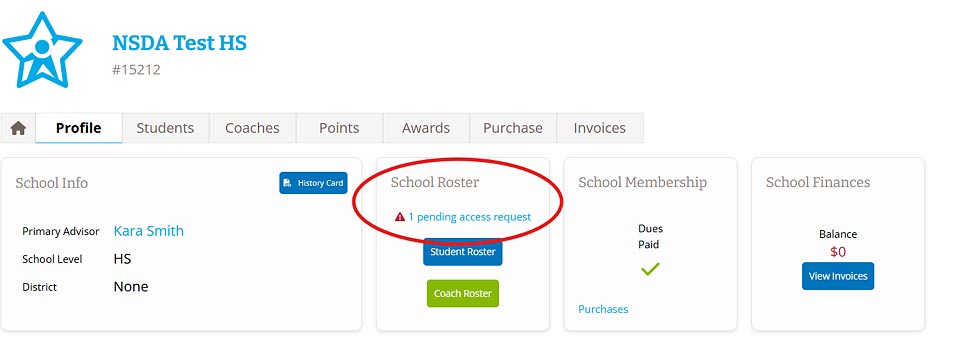
Your school roster is where you manage the students and coaches connected to your NSDA school membership. Keeping it current helps make sure students receive credit for their participation and that the right people are connected to your program.
First: Access Your NSDA Account
Next: Once in your account, these resources can help you make updates throughout the season.
-
- Add students to your team’s NSDA Roster
- Manage Coach Roles and Account Permissions
Register for a Tournament
Many speech and debate tournaments use Tabroom.com for registration. Coaches can find tournaments, enter students and judges, and manage their registration.
First: Find a Tournament on Tabroom.com
Next: Once you’ve found your tournament, these resources can help you complete registration and prepare.
-
- Ensure your school in the NSDA system is connected to Tabroom.com
- Add students and judges to your team’s Tabroom.com roster
- Tabroom registration help
- Tabroom.com’s Competitor Signup Feature
- Prepare for your first tournament
Access Ballots and Results
For tournaments using Tabroom.com, coaches and competitors may use the platform to access ballots, feedback, and results.
First: Go to Tabroom.com
Next: Once your tournament has released ballots or results, these resources can help you find and use them.
Pay an Invoice
Coaches can use their NSDA Account to review invoices and make payments for membership or other fees throughout the season.
First: Access Your NSDA Account
Next: Once in your account, in the Schools box, select the name of the relevant school. Once the school’s profile loads, select the Invoices tab on the right. On the School Finances page, you can review the team’s financial history, download or print invoices, and make payments.
Add or Review Merit Points
NSDA merit points recognize student participation and achievement in speech and debate. As students earn points, they advance through levels in the NSDA Honor Society. Coaches can enter points for eligible activities and review each student’s progress.
First: Access Your NSDA Account
Next: Use these resources to enter points or connect Tabroom.com for automatic posting
Vote on Topics
The NSDA publishes current and upcoming potential debate topics. Eligible coaches and student members can submit their preferences during open voting periods through their NSDA Account.
First: Access Your NSDA Account
Next: Navigate to the NSDA Voting box, select the available ballot, follow the instructions and submit your vote before the listed deadline. If the box says “No open ballots,” there are no ballots available for you at that time.